‹ All help guides
Club Manager
·
Daily Operations
·
3 min read
The Schedule Tab: Your Day at a Glance
Read the day, record a walk-in booking at the desk, and block courts for maintenance or private events.
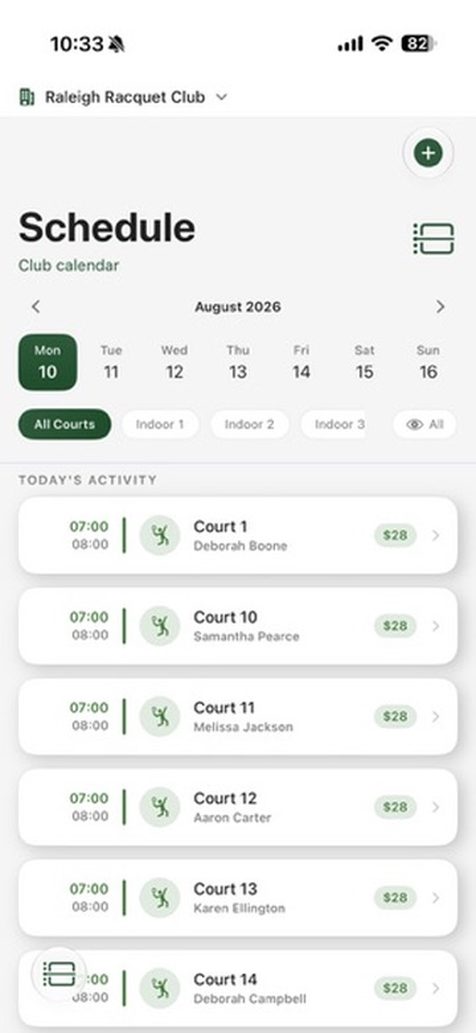
Your club's day in the Schedule tab
Reading your day
The Schedule tab is your club’s day at a glance. In time order you’ll see court bookings with the price on them, private lessons, clinic sessions, and any court blocks.
Leagues and tournaments appear as all-day banners in an Active Today strip at the top, on every day of their season. Open Play nights show right on the day feed too — tap one to jump straight to running it. (They also live under Events → Open Play.)
Use the week strip to change days, and the pills at the top to filter to one court.
Record a walk-in booking
Someone calls, or walks in without the app? Schedule → the + button (top right) → Add Walk-in Booking. Pick the court, date and time, and duration, type their name under Customer, then tap Record Booking.
Leave Price blank and the app charges your normal rate for that court and time. It shows you the amount when it confirms. Type a number only if you agreed a different price. Whatever you collect at the desk is recorded as paid at the club.
Weekly regular? Flip Repeat weekly and pick an end date. Same court and time every week, up to 16 weeks. Weeks where the slot is already taken are skipped, and the app tells you how many.
Walk-ins on a computer
The web schedule gives the desk more room. Click the slot, choose Add Walk-in Booking, then search for the players by name. Pick a Clubhouse account and the booking appears in that member’s app, marked Booked by the club, with the usual reminders. For someone without an account, use Add “name” as a guest.
Who pays: choose One person pays or Split between players. Tap a player’s name to make them the organiser.
Add a discount… takes a dollar amount or a percentage and asks for a short reason, which is kept with the booking.
Record Booking saves it. The booking stays unpaid until you mark it collected, so take the money and tap the booking to record it.
Important: the walk-in sheet on the iPhone takes a name only, so a booking recorded there is a record for the club and will not show in the member’s app. When a member wants it in their app, record it on a computer and pick their account.
Each court has a seat count — Settings → Courts → Manage Courts → Seats on the court, two to eight. The app will not seat more players than that on a booking.
Block a court
Schedule → the + button (top right) → Block Court. Pick the court, the window, and a reason, then tap Block Court. Blocked time shows in amber and players can’t book it.
If bookings already exist in that window, the app warns you first. Block Anyway goes ahead, and you look after those players yourself. To undo, tap the block, then the trash icon under Upcoming Blocks.
Longer outage? Set the court’s status to Maintenance in Settings → Courts → Manage Courts. It disappears from booking and event creation until you flip it back.
Good to know: your front-desk staff can record walk-ins and block courts from the staff view on a computer, so you don’t have to be the one holding the phone. Your pros can open their own clinic sessions from there too. Leagues and tournaments you run from the Events tab in the app.
What to know before you block
If there are already bookings in that window you will be stopped, with an Existing Bookings warning listing them and the option to Block Anyway.
Read that list before you continue — it is the only place you will see who is affected. Blocking anyway does not cancel those bookings, does not refund anyone, and does not notify them. They will show up.
So: note the names, block anyway, then open each booking on the web schedule and cancel or move it — the player’s full payment comes back automatically.
How blocks work
One court per block. Closing a six-court club for weather means six blocks.
One window per block. Enter a weekly maintenance hour each week.
The phone shows one day at a time; the web schedule shows the whole week.

Recording a walk-in booking at the desk
Can’t find what you need? Ask from inside the app: Settings → Report a Problem or Ask a Question.